In addition to my piler installation guide this now focuses on updating an existing piler setup. Luckily this takes noticeable less time than the installation. If you don’t have piler up and running yet, check out my guide linked before. Basically the update procedure consists out of four steps. Make…
Blog
Want to update piler? Then you can check out my piler update guide. This is my installation guide for mailpiler I have written and optimized in the last days. If there are any questions or ideas, please let me know in the comments below or via email. piler is a open source email archiving solution with benefits and many features. The main usecase is for compliance and legal reasons of companies. Piler can encrypt and compress, deduplicate mails to reduce disk usage. This should guide you through the setup of mailpiler on a fresh Ubuntu installation. For your convenience I have added quite some sed commands for easily adjusting most configuration files as needed and also variables for easier replacing specific values throughout the guide. However note, that the goal of this is not automating the installation and you might need to adjust the configuration to your own needs during or after steps provided. Consulting documentation and guides linked below is recommended. This guide should take approx. 45 minutes.
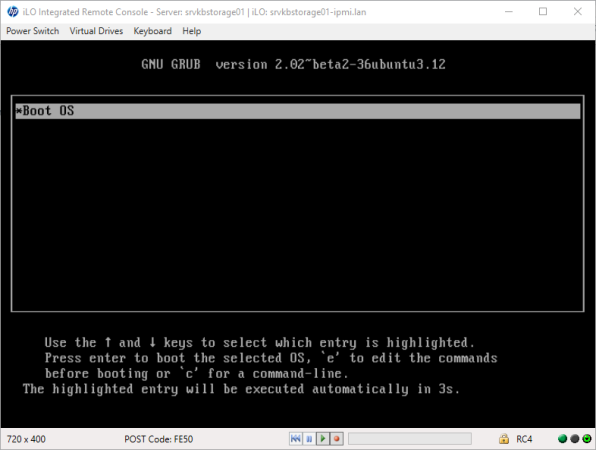
Since more than a year I’m running FreeNAS on a dedicated HPE ML310e v2 Gen8 machine in my HomeLab as my main storage, mainly as a iSCSI server for my VMware ESXi nodes. However when building this specific setup, I’ve came across a limitation from the BIOS: Just like the HPE MicroServer Gen8 the ML310e v2-tower is only able to boot from the first attached SATA device. So when the system disk is not detected as the first disk or once the first boot device fails (partially), the FreeNAS machine can’t boot up anymore. Not something I was pretty happy about, specially because FreeNAS runs on small mirrored SSD drives. Time to get a workaround in place to get across this limitations. However one important aspect was to keep FreeNAS untouched, to prevent that something breaks after future updates. After a lot of research and hardware reboots I was able to come up with a working solution for me…
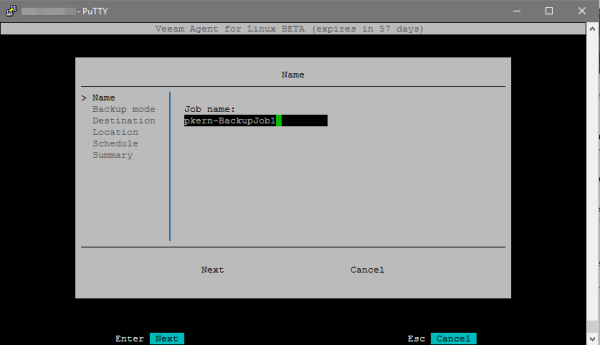
Wie bereits in einem vorherigen Blog-Artikel genauer erläutert, hat Veeam eine neue kostenfreie Software mit dem Namen “Veeam Backup Agent for Linux” veröffentlicht. Aktuell noch in der Beta-Phase. Damit ist die Sicherung von Linux-Systemen – auch ganz ohne grafische Desktop-Umgebungen – über die CLI möglich. Die Konfiguration läuft mit Hilfe einer beigelieferten GUI über das Terminal ab. In diesem Artikel möchte ich nun genauer auf die erste Konfiguration des ersten Backup-Jobs eingehen. Zur Installation des Backup Agents bin ich bereits in einem vorherigen Artikel genauer eingegangen – dieser ist im ersten Absatz verlinkt.
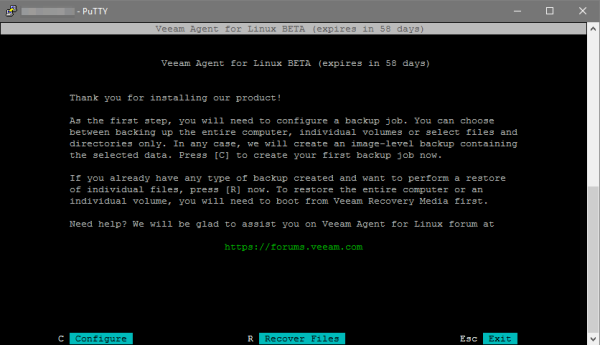
Veeam bietet seit längerer Zeit eine kostenlose Lösung zum Sichern von einzelnen Windows-Maschinen an: Die Software hört auf dem Namen Veeam Endpoint Backup Free und hat selbst mir schon mehrmals aus der Klemme geholfen. Wer sich genauer über das Tool informieren möchte, kann sich auf der offiziellen Webseite umsehen. Wie bereits vor einigen Monaten berichtet, gab man die Entwicklung einer kostenlosen Sicherungslösung für Linux-basierende Betriebssysteme bekannt. Nach einigen Monaten Verspätung, wurde schließlich am 21. Juni 2016 die erste Beta-Version des Veeam Backup Agents für Linux veröffentlicht. Ich habe mir einen ersten Eindruck verschafft und möchte euch diesen nun mitteilen…
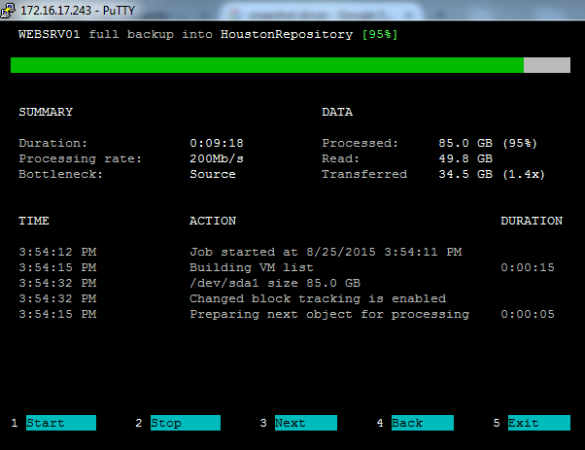
Aktuell findet in Las Vegas die VeeamON 2015 statt, wo sich Experten, Partner und Kunden von Veeam aus aller Welt treffen, sich gegenseitig austauschen, an Konferenzen teilnehmen und das sicherlich großzügige Buffet genießen werden. Zudem stehen Präsentationen zu neuen Produktvorstellungen und Technologien von Veeam an. Soweit nun kurz die VeeamON erklärt, kommen wir nun zum Kernthema, worüber ich eigentlich schreiben wollte: Veeam hatte auf der besagten Veranstaltung ein neues Produkt angekündigt, was mich ehrlich gesagt sehr begeistert und worauf ich schon sehr gespannt bin. Um euch nun nicht noch weiter auf die Folter zu spannen: Es wurde das Produkt “Veeam Backup For Linux” angekündigt.

Veeam Backup & Replication ist eine sehr tolle und umfangreiche Software zum Sichern von Hypervisors wie VMware ESXi oder Microsoft Hyper-V. In den vergangenen Wochen hat mich Veeam jedoch mit einem Problem ratlos gemacht: Veeam konnte meine zwei Microsoft SQL Server 2014 Service Pack 1 in einer Always-On-Gruppe einfach nicht sichern, obwohl diese offiziell von Veeam unterstützt werden. In der Verwaltungsoberfläche trat immer folgender Fehler auf: “VSSControl: Failed to freeze guest, wait timeout” (siehe ebenfalls im Screenshot 1) Zur groben Übersicht, so sah die minimalistische Umgebung aus: 1x VMware ESXi 5.5 U2 1x VMware vCenter 5.5 U2 1x Veeam Backup and Replication v8 (v8.0.0.20121) 2x Microsoft SQL Server 2014 SP1 in zwei eigenen virtuellen Maschinen beide Nodes in einer Always-On-Gruppe AOG erreichbar unter DNS “sqlcl-vcenter.domain.local” Woran das nun liegen könnte?
Mit zwei kurzen kurzen Linux Befehlen kann man seine MySQL Datenbank in eine SQL Datei speichern und auch wieder importieren lassen. Backup erstellen: mysqldump -u root -p --all-databases --result-file=dbdata.sql Zum importieren: mysql -u root -p < dbdata.sql Sobald man den Befehl ausführt, muss man…