Windows in recovery mode: No fixed disks to show
Note
This article is more than 7 year(s) old – information may be outdated.
I have a bunch of Windows Server VMs running in a VMware vSphere HomeLab. After nearly about three months of uptime, FreeNAS decided for yet some unclear reasons to crash completely (probably a kernel panic). End of the story: Windows installation was completely broken. Not booting anymore. Apparently the crash ocurred during update installation (perfect timing!).
To get the VMs back running I needed to change a few things using the Windows recovery mode. However diskpart showed: "There are no fixed disks to show". Wondering why? Me too!
After a good hint from a friend I realized that I’m using VMware PVSCSI for my virtual disks. (Apparently I was so clever to let PXE take care about this when deploying new virtual machines, so I didn’t even think about it anymore.)
Solution is basically very easy, I’ve done it that way:
-
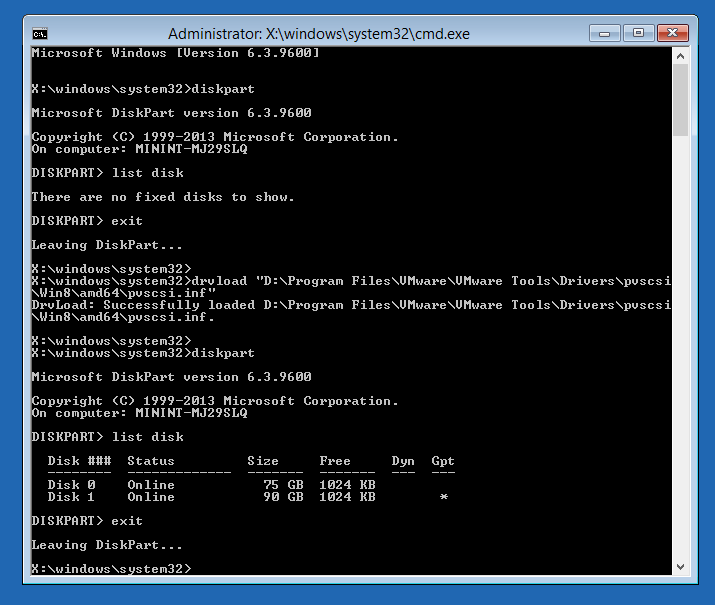
Just to verify that no disks are existent before:
TXTX:\windows\system32>diskpart [...] DISKPART> list disk There are no fixed disks to show. - Now head over to the vSphere client, right-click on the VM and click on Guest OS – Install VMware Tools and proceed by clicking on Mount (Make sure the VM does have a virtual CDROM drive)
-
Time to get into Windows recovery, open the Command Line and type in following: (for Windows 8 and up)
TXTdrvload "D:\Program Files\VMware\VMware Tools\Drivers\pvscsi\Win8\amd64\pvscsi.inf" -
To verify that you’re now seeing your drives attached to the PVSCSI controller use:
TXTX:\windows\system32>diskpart [...] DISKPART> list disk Disk ### Status Size Free Dyn Gpt -------- ------------- ------- ------- --- --- Disk 0 Online 75 GB 1024 KB * Disk 1 Online 90 GB 1024 KB * DISKPART> - If that works, simply unmount the VMwareTools ISO: Back to the vSphere client, and hit Guest OS – Unmount VMware Tools installer in the context menu
Comments