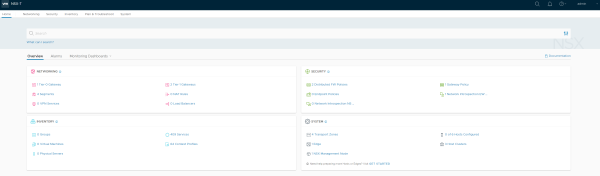
Due to some experiments with NSX-T 3.0 in my lab with ESXi 7.0 hosts I was in need removing the VIB files manually from the host, as the NSX Manager failed doing so. Just to be very clear: This is NOT officially supported by VMware! Do that at your own risk. If unsure, reach out to the support first. Should you ever be in similar situation, here a few takeaways and lessons learned so far:
Blog
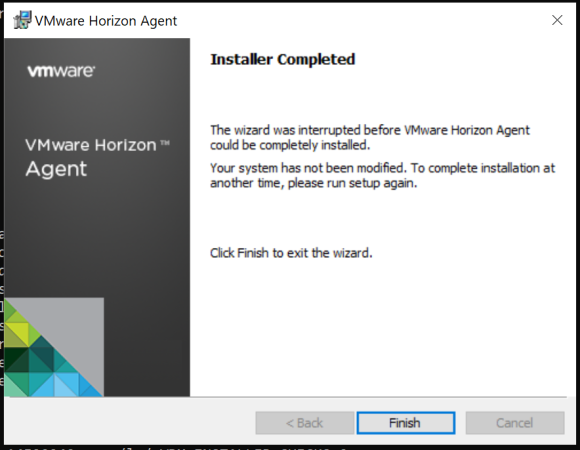
I’m building customized and optimized Windows 10 images for my VDI, removing unnecessary stuff from the Windows installation (to name a few: unneeded drivers, retail/demo files, Hyper-V components). This reduces the disk and memory footprint. Once the customized Golden Image for the Linked Clones is finally installed in a virtual machine and optimized (with the OS Optimization Fling) accordingly, you need to install the VMware Horizon Agent at some point before rolling it out. All preparations done. So guess what failed after days of optimization and dozens of Windows 10 image customizations? Yep, the VMware Horizon Agent installation…
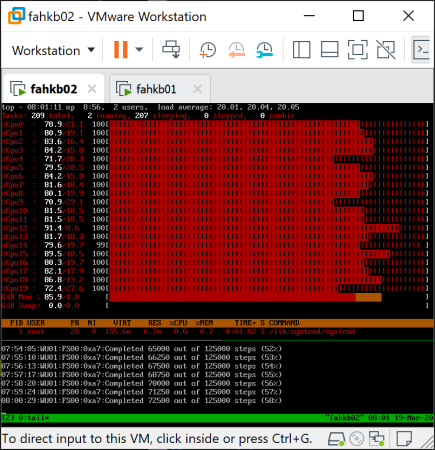
You might have seen my previous blog post about the VMware Appliance for Folding@Home. This article is about how the local console was made underneath – and actually how simple it is. Usually when powering on a Linux-based operating system, you just get the usual login console after boot. I thought that it would be handy to see what or if something is ongoing without actually logging in – so in other words: Seeing how busy the virtual machine is, and what the Folding@Home software is doing. So I went ahead figuring out a simple, fast and easy way showing both. Ending up with the idea: Using a terminal multiplexer, and showing the classic top and tail -f /var/lib/fahclient/log.txt. That’s how it looks like (when Enable F@H Stats in VM Console was enabled during deployment): This is how it works…

The PhotonOS-based appliance allows you quickly deploying the software by Folding@Home running protein folding calculations using your available CPU/GPU resources to help fighting COVID-19. Deploying the OVA gives you different set of options: In the end, looking like: Want to know more? Read the official…
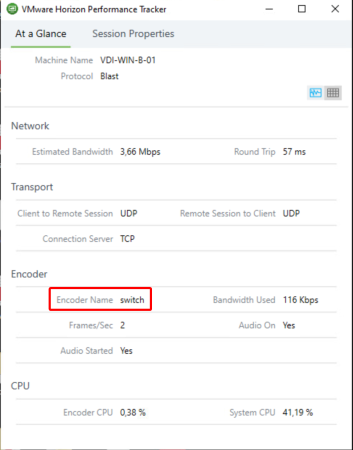
VMware Horizon 7.10 – released on September 17, 2019 – ships with a new dynamic encoder. Depending on what content you’re watching to in your VDI, it will seamless switch to the best suiting codec for optimal performance/quality-balance. While H.264 is ideal for rapidly changing contents like videos, JPG/PNG offers better quality for more static content like Office applications. Overall: Neat stuff! As of this release the "switch"-Codec is disabled by default and must be explicitly enabled via registry. Also make sure you’re using Horizon Client 5.2 or later to make the codec work.

The new Log Insight 8.0 release brings some cool new things: The OS of the whole appliance is replaced with Photon OS 3.0 instead of SUSE (in-place update possible!), the Windows agent is being open-sourced and brings various improvements to content packs. To read more you can check out the release notes or the official blog post. However when I’ve went ahead upgrading my Log Insight instance the upgrade process ran into a timeout. The Web UI as well as SSH were not reachable anymore. The whole node was dead network-wise, while the appliance itself ran just fine. Sherlock’s conclusion: Something went wrong, obviously.
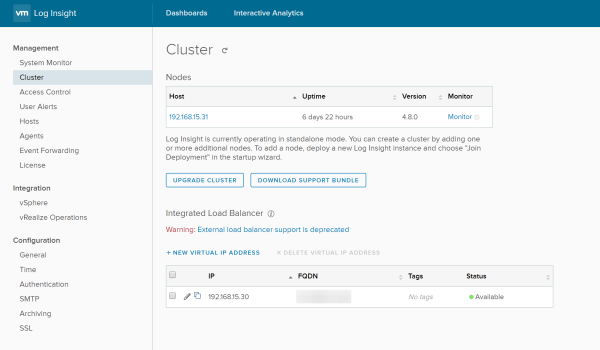
How to change the IP address of a VMware vRealize Log Insight node? Glad you asked! I’ve done this change a few weeks earlier to be able to take use of the recommended "Integrated Load Balancer" (in short ILB) while re-using the existing node IP address for the Virtual IP address, mainly for backwards-compatibility reasons like already deployed agents.
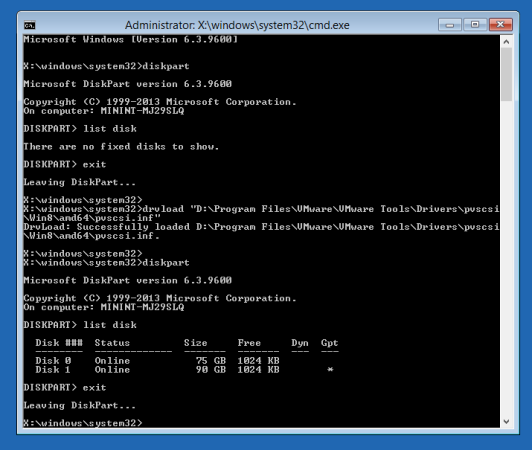
I have a bunch of Windows Server VMs running in a VMware vSphere HomeLab. After nearly about three months of uptime, FreeNAS decided for yet some unclear reasons to crash completely (probably a kernel panic). End of the story: Windows installation was completely broken. Not booting anymore. Apparently the crash ocurred during update installation (perfect timing!). To get the VMs back running I needed to change a few things using the Windows recovery mode. However diskpart showed: "There are no fixed disks to show". Wondering why? Me too!

Since more than a year I’m running FreeNAS on a dedicated HPE ML310e v2 Gen8 machine in my HomeLab as my main storage, mainly as a iSCSI server for my VMware ESXi nodes. However when building this specific setup, I’ve came across a limitation from the BIOS: Just like the HPE MicroServer Gen8 the ML310e v2-tower is only able to boot from the first attached SATA device. So when the system disk is not detected as the first disk or once the first boot device fails (partially), the FreeNAS machine can’t boot up anymore. Not something I was pretty happy about, specially because FreeNAS runs on small mirrored SSD drives. Time to get a workaround in place to get across this limitations. However one important aspect was to keep FreeNAS untouched, to prevent that something breaks after future updates. After a lot of research and hardware reboots I was able to come up with a working solution for me…
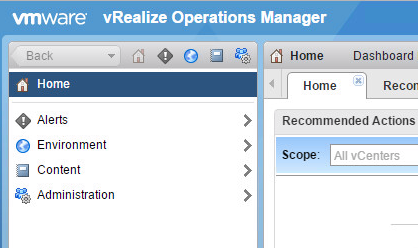
Am 15. November 2016 veröffentlichte VMware eine neue Version von VMware vRealize Operations Manager 6.4 (kurz: vROPS) mit Verbesserungen, neuen Dashboards und auch eine Unterstützung für das ebenfalls neue vSphere 6.5. Genaueren Release Notes finden sich hier. Neugierig wie ich bin, wollte ich gleich meine vROPS-Installation von 6.3.0 auf 6.4.0 aktualisieren. Leider schlägt schon die Aktualisierung des Betriebssystems der virtuellen Appliance fehl. Zwar mit dem – relativ wenig aussagenden – Fehler: Failed - upgrade.pak.failed.casa_orchestrator Im Netz lässt sich leider kaum etwas dazu finden. Auch die “Pre-Update System Validation” meldet keinerlei Fehler – alles sei in Ordnung. Die abgebrochene Update-Installation sagt aber etwas anderes.